



Step 1:
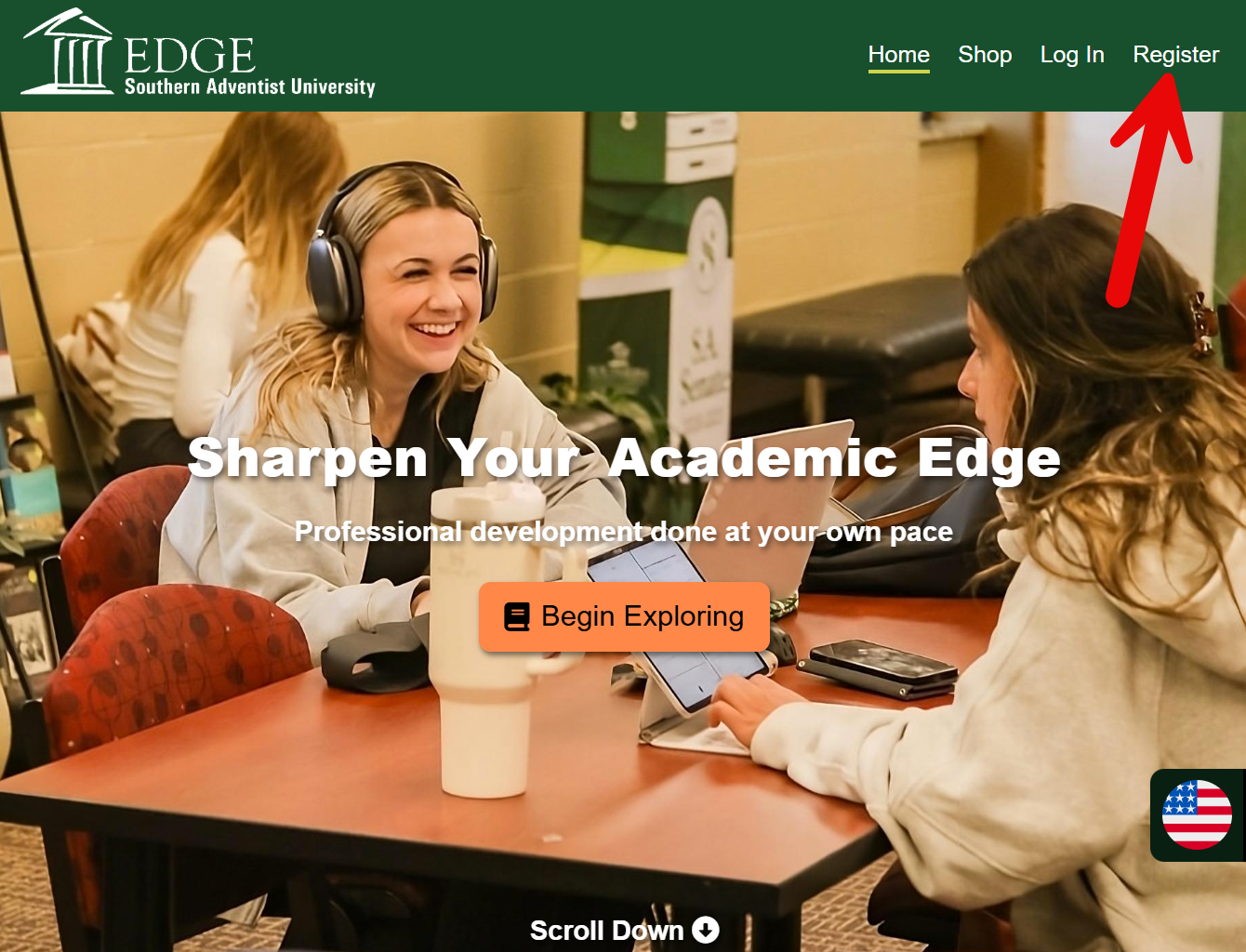
First, go to the "Register" page by clicking the link in the top right.
Step 2:
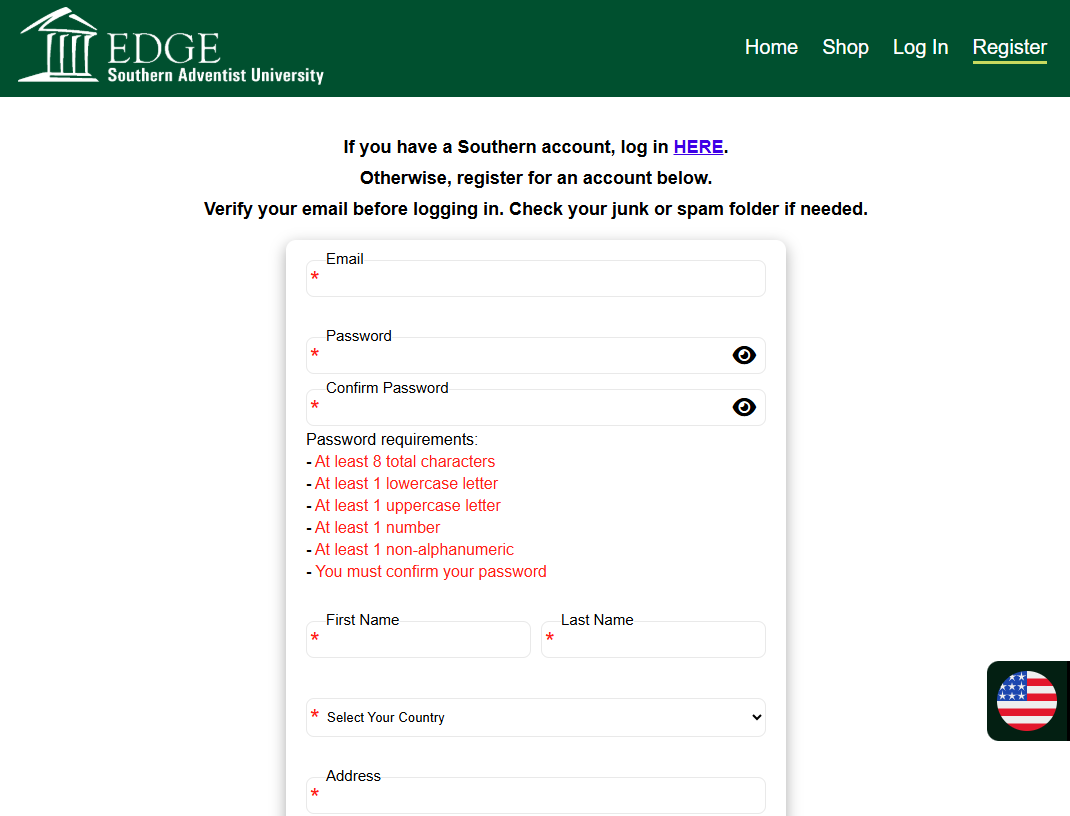
Next, you can enter the information prompted on the form boxes.
Make sure your password follows the guidelines below the password boxes. They will change from red to green as you fulfill them.
NOTE: If you have a Southern account (with a "@southern.edu" email), you don't need to register. Just click the link at the top of the page to log in through Azure.
Make sure your password follows the guidelines below the password boxes. They will change from red to green as you fulfill them.
NOTE: If you have a Southern account (with a "@southern.edu" email), you don't need to register. Just click the link at the top of the page to log in through Azure.
Step 3:
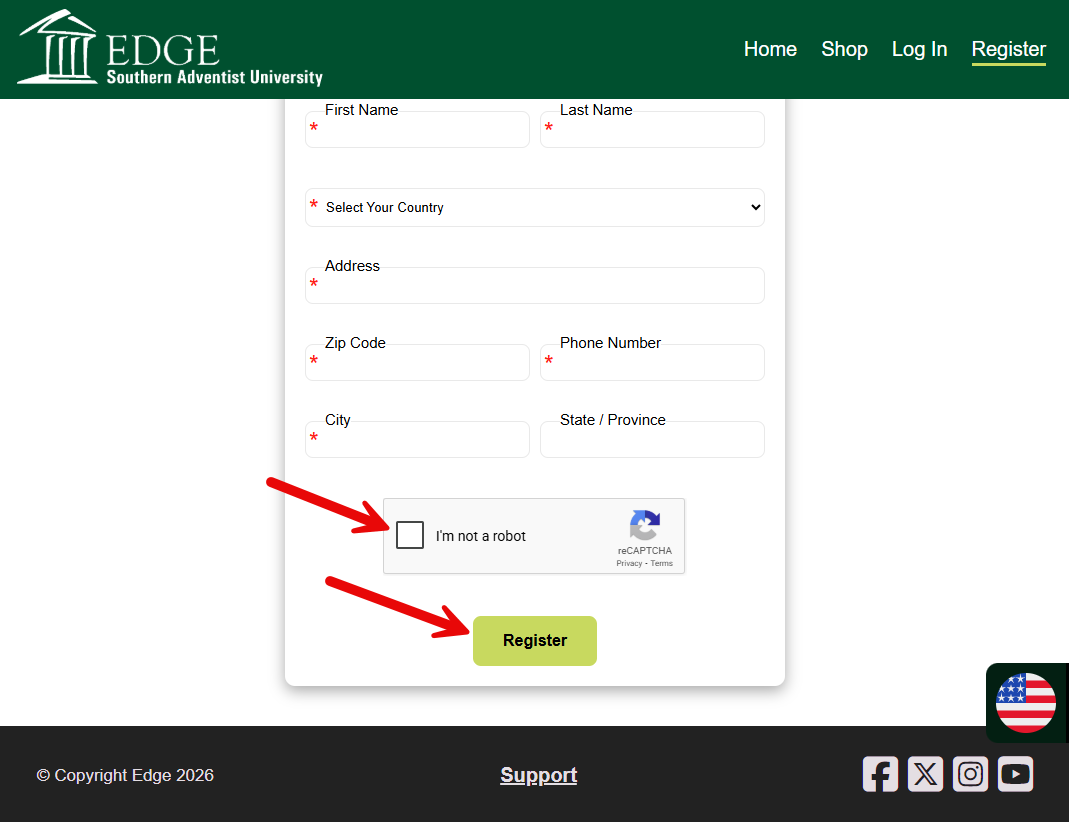
Once you have filled out all the boxes, complete the reCAPTCHA by clicking on the box. You can then click the "Register" button.
If you aren't sent to a different page, check the form to see which input has an error.
If you aren't sent to a different page, check the form to see which input has an error.
Step 4:
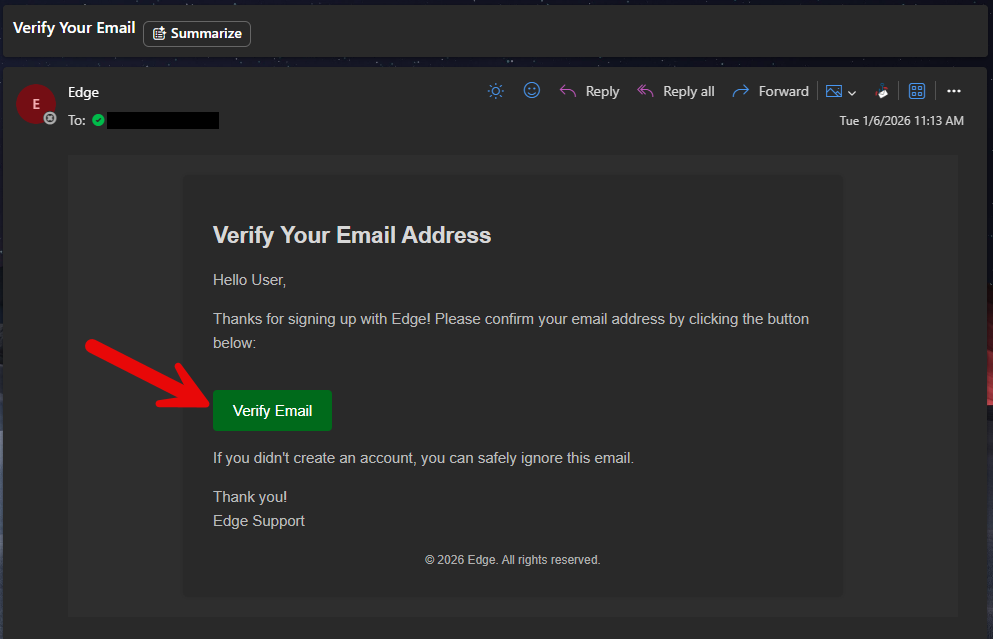
You will receive an email shortly after successfully filling out the form. Click the "Verify Email" button in this email to verify your account.
NOTE: Make sure to check your spam or junk folders. If you don't get an email for some time, please contact support.
NOTE: Make sure to check your spam or junk folders. If you don't get an email for some time, please contact support.
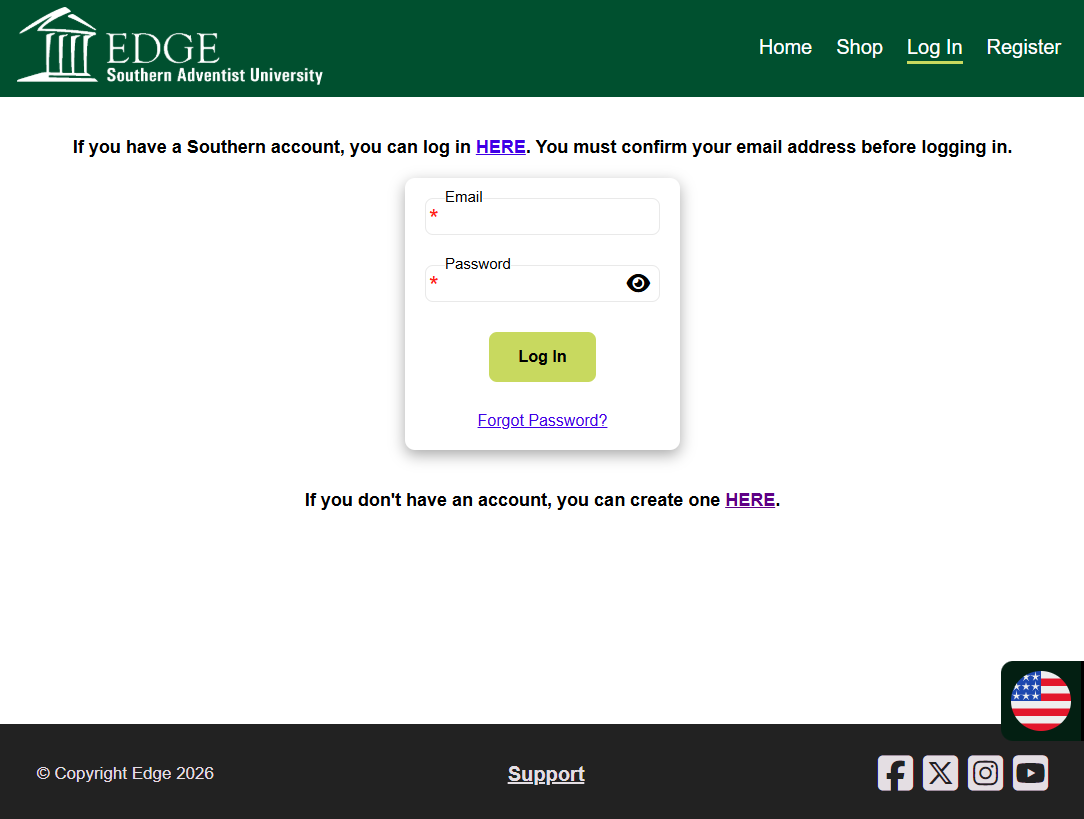
Step 5:
You will then be taken to the login page where you must enter the credentials you created when registering.
Next tutorial: Enrolling in a course
Go Now