



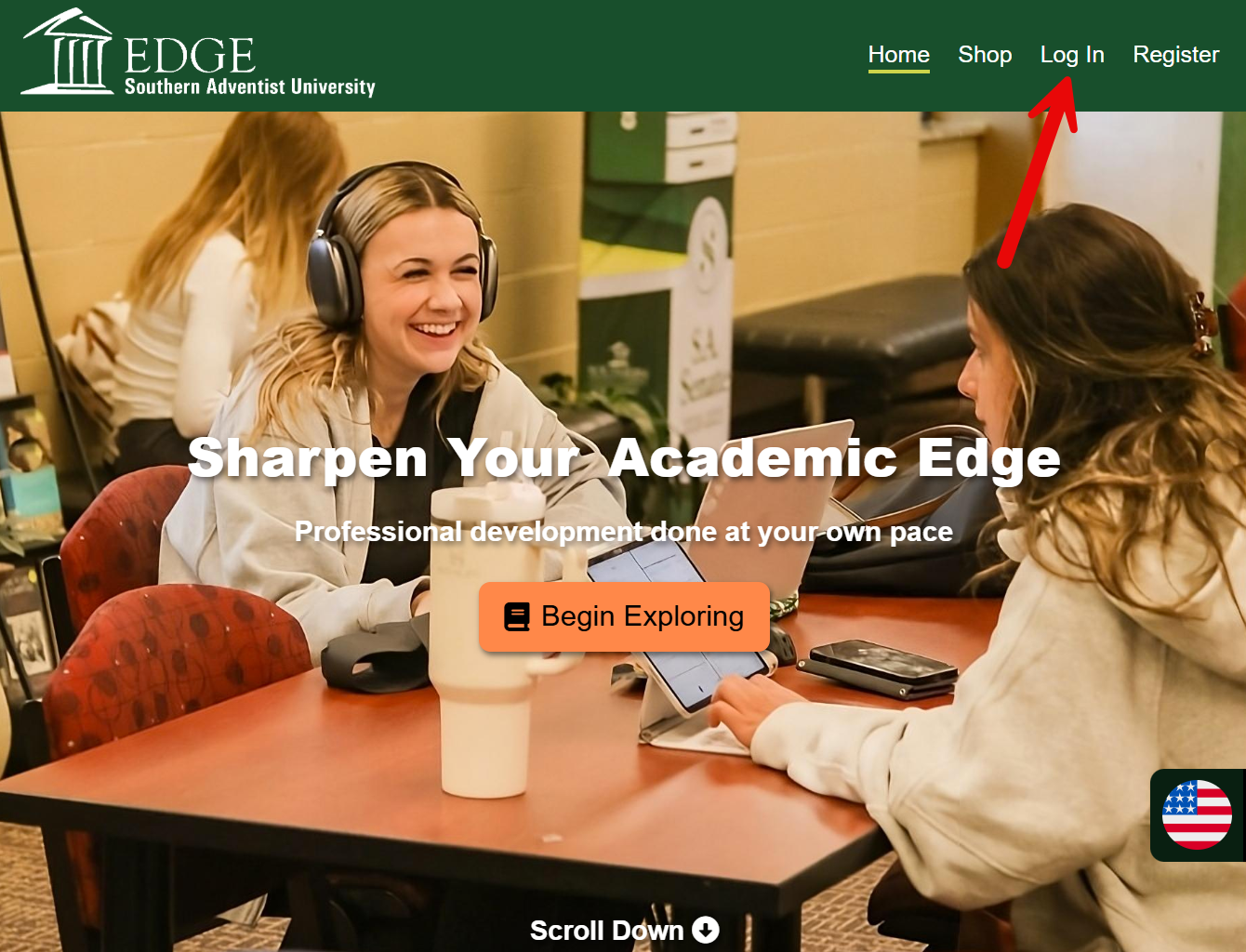
Step 1:
First, go to the "Login" page by clicking the link in the top right.
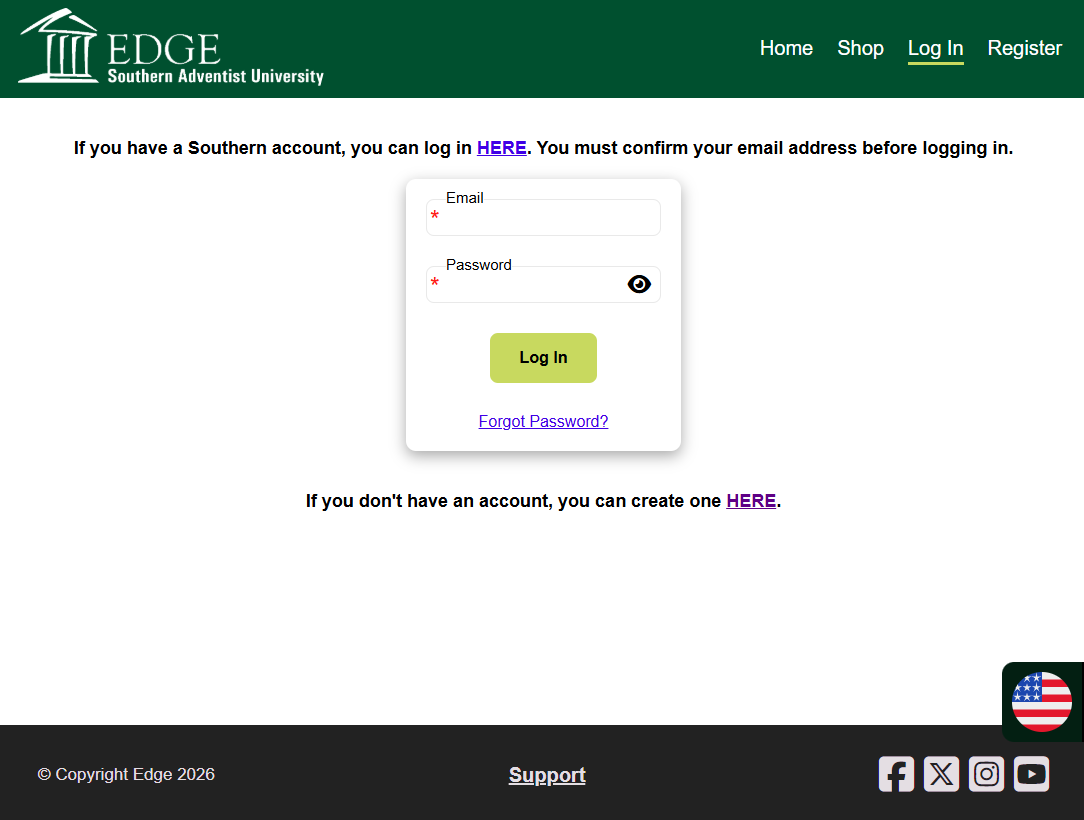
Step 2:
Next, log in using the email and password you created during the registration process.
NOTE: If you have a Southern account (with a "@southern.edu" email) you don't need to register. Simply log in using the link above the form.
NOTE: If you have a Southern account (with a "@southern.edu" email) you don't need to register. Simply log in using the link above the form.
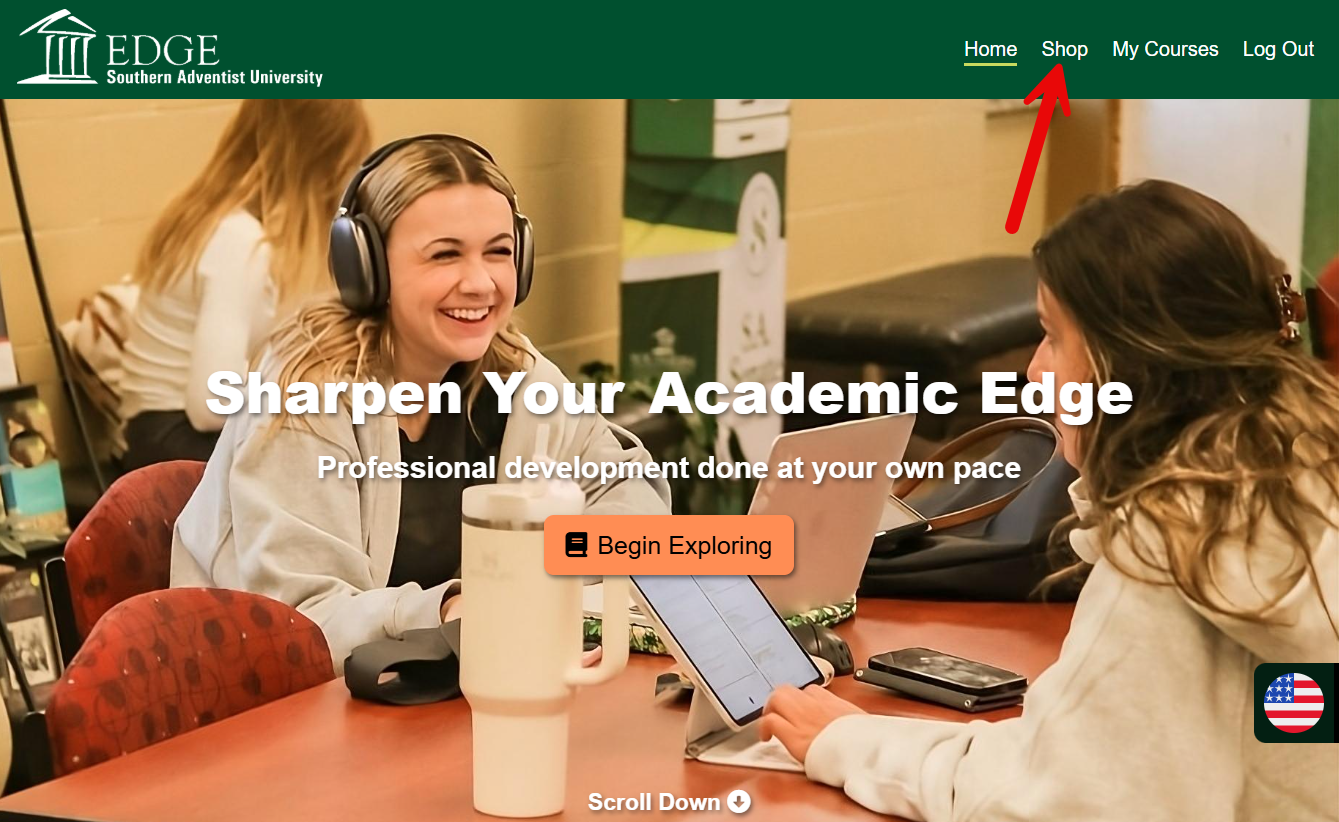
Step 3:
Once you are logged in, click on the "Shop" link in the top right to go to the shop page.
NOTE: If you received a direct link to the course, you should open it instead of looking for the course in the shop. Some courses are not displayed on the shop and can only be linked to.
NOTE: If you received a direct link to the course, you should open it instead of looking for the course in the shop. Some courses are not displayed on the shop and can only be linked to.
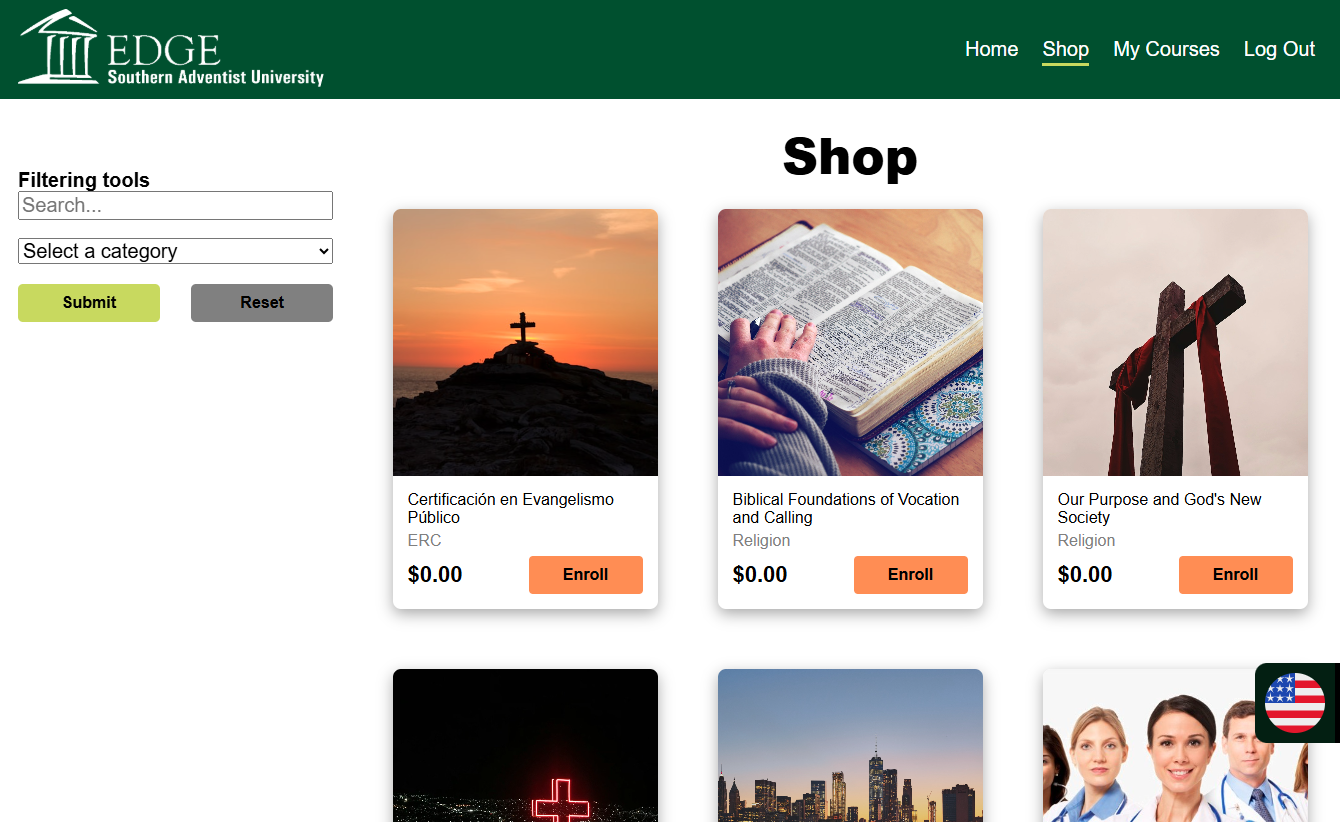
Step 4:
Here you can browse the list of available courses.
Use the "Filtering tools" on the left side of the screen (or the top on mobile) to narrow down the results.
Use the "Filtering tools" on the left side of the screen (or the top on mobile) to narrow down the results.
Step 5:
You can click on the picture of a course to see its page and read about it.
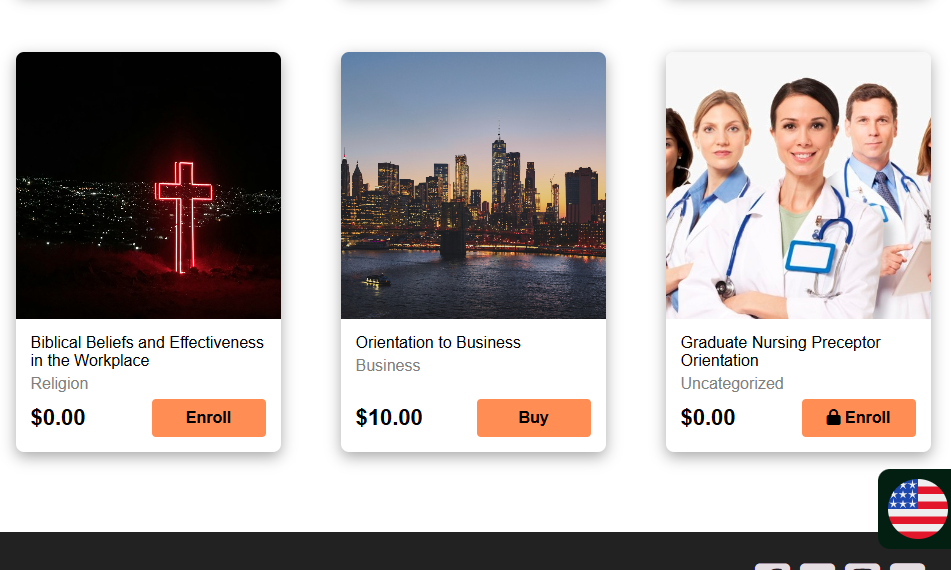
Courses may be password protected. If that is the case, you will see a lock on the enroll/purchase button. This requires you to enter a password provided by the course maintainer before enrolling/purchasing.
If a course is free, it will show "$0.00" as the price and "Enroll" on the button. Upon clicking the button, you will be met with a checkout screen. Simply click the "Enroll Now" button to become enrolled in the course.
If a course isn't free, it will show the price and the button will say "Buy". You must go through the checkout process by entering payment details. After the purchase completes, you will be enrolled in the course.
Courses may be password protected. If that is the case, you will see a lock on the enroll/purchase button. This requires you to enter a password provided by the course maintainer before enrolling/purchasing.
If a course is free, it will show "$0.00" as the price and "Enroll" on the button. Upon clicking the button, you will be met with a checkout screen. Simply click the "Enroll Now" button to become enrolled in the course.
If a course isn't free, it will show the price and the button will say "Buy". You must go through the checkout process by entering payment details. After the purchase completes, you will be enrolled in the course.
Step 6:
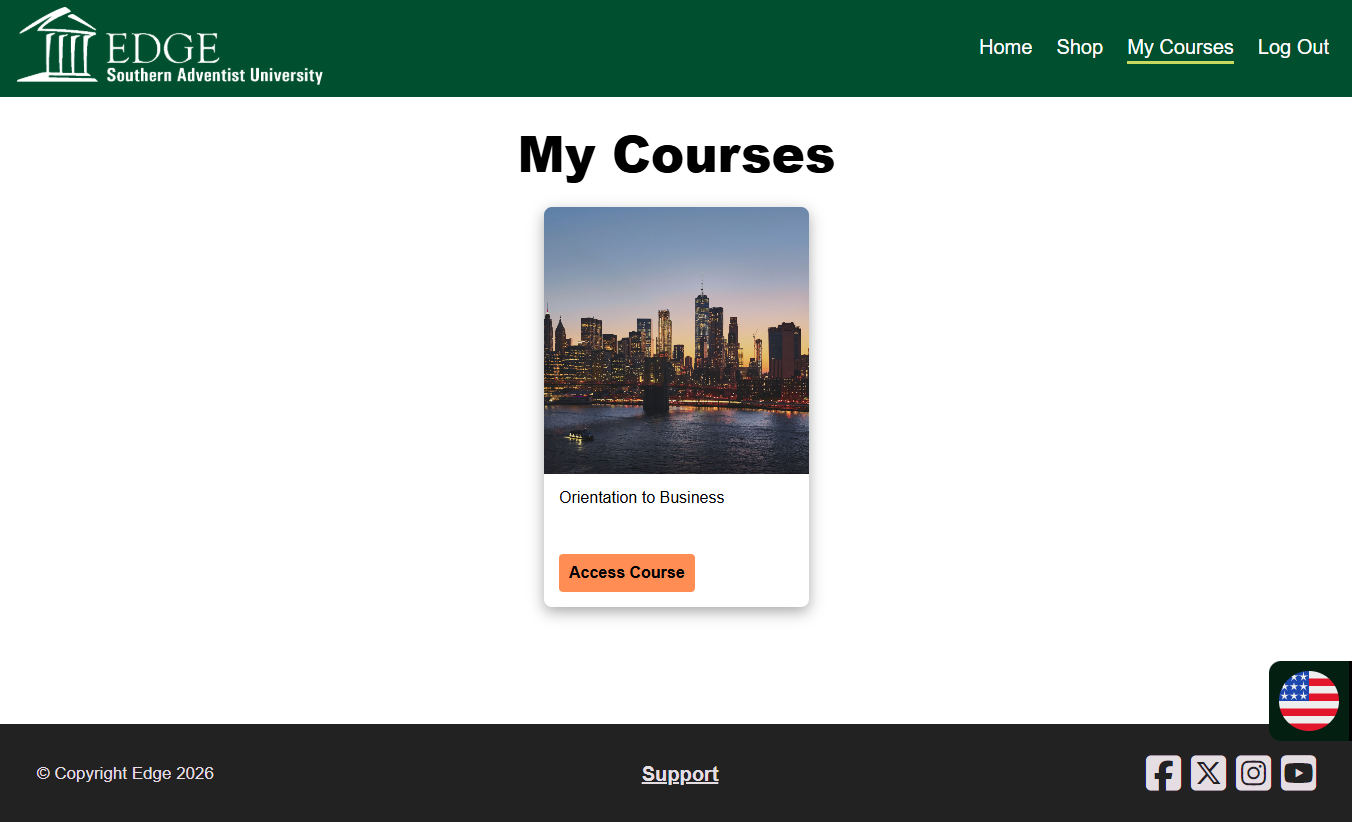
To see the courses you are enrolled in, click on the "My Courses" link in the top right. Clicking on the "Access Course" button will take you to eClass where you can take the course.
If your purchased course does not show up after a few minutes, please contact support.
If your purchased course does not show up after a few minutes, please contact support.